How to Edit, Delete, or Add a Referee in Referoo
Quick Overview
This article explains how candidates can edit, delete, or add referees using their Referoo Candidate Dashboard. You can manage referee details before they confirm their information, helping keep your reference check on track.
Managing Your Referees from the Candidate Dashboard
The email and/or SMS you received from Referoo contains your Candidate Dashboard link. Your Candidate Dashboard is a Referoo webpage unique to you and includes everything you need to find and complete the check(s) sent by your recruiter or hiring manager.
Where to Manage Your Referees
To manage your referees, select the Referees section within your Candidate Dashboard.
When using a computer, the menu appears on the left-hand side. Select Referees from the menu.
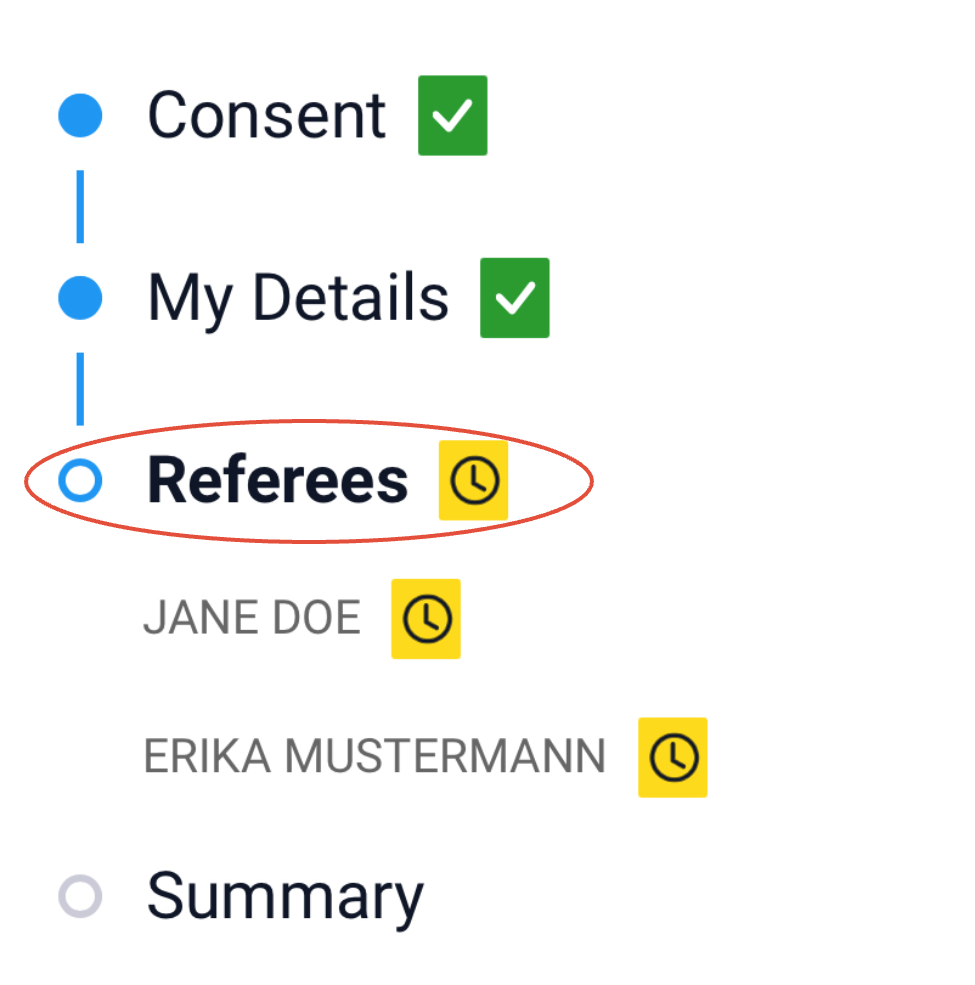
When using a mobile phone, the menu appears at the top of the page. Select Referees from the menu.

Editing / Updating a Referee
Referee information can be edited until the referee accesses their Referee Dashboard and confirms their contact information. Once confirmed, the information becomes locked and can only be edited by your recruiter or hiring manager.
Steps to edit a referee:
- Click the referee’s name to display their contact information.

- Select the field you want to update and edit the text.
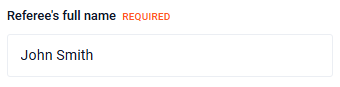 ❗ Note❗️: If the boxes are greyed out you will not be able to edit them. The referee has already confirmed their information, so the details are locked and can only be edited by your recruiter/hiring manager.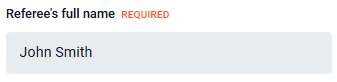
- Press Submit to save your changes.
If you update the referee’s email address and/or phone number, a new email and/or SMS invite will be sent automatically.
Deleting a Referee
You can delete a referee from your Candidate Dashboard to cancel the reference request, provided the referee has not yet confirmed their contact information. Once confirmed, the referee can only be deleted by your recruiter or hiring manager.
Steps to delete a referee:
- Click the referee’s name to display their contact information.

- Scroll to the bottom and select Delete referee.❗ Note❗️: If the fields are greyed out and the Delete referee option is not visible, the referee has already confirmed their details.

Referees can decline a reference request via the email invite. If they do, they are automatically removed from your dashboard and the Referoo system. You will receive an email notification and will need to add a replacement referee.
Adding Another Referee
After you have submitted the number of referees requested by your recruiter, you may be able to add additional referees. Adding more referees may help your reference check complete faster.
Steps to add a referee:
- Scroll to the bottom of the Referees page in your Candidate Dashboard.
- Select Add referee, located above the Back and Next buttons.
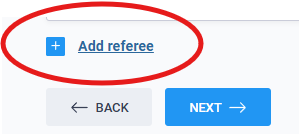
- Complete the referee details and press Submit.
An email and SMS will be sent to the new referee requesting they complete a reference check.
❗ Note❗️: Your recruiter may limit how many referees you can add. If you receive an error message, please contact support.
Frequently Asked Questions
Can I edit or delete an existing referee?
Yes. You can edit or delete a referee from your Candidate Dashboard, provided the referee has not yet confirmed their contact information. After confirmation, changes must be made by your recruiter or hiring manager.
Why are the referee fields greyed out?
Greyed-out fields mean the referee has confirmed their details and the information is locked.
How do I cancel a reference request?
You can cancel a request by deleting the referee before they confirm their details.
What happens if a referee declines the request?
If a referee declines, they are automatically removed from your dashboard and you will be notified by email.
Why can’t I add another referee?
Your recruiter may have set a limit on how many referees you can provide.
Need Help?
If you need assistance, please contact Referoo support via the chatbox on any Referoo page or email support@referoo.com.