How Do I Complete a Digital Signature?
Quick Overview
This article explains how to complete a digital signature when prompted in Referoo. You will be guided through reviewing the Consent Statement, creating your digital signature, and providing your consent to continue.
Main Guide
Confirming the correct person has received the request and providing consent
Follow the steps below to complete your digital signature:
- Press the grey 'Read Policy' option to read through the Consent Statement.
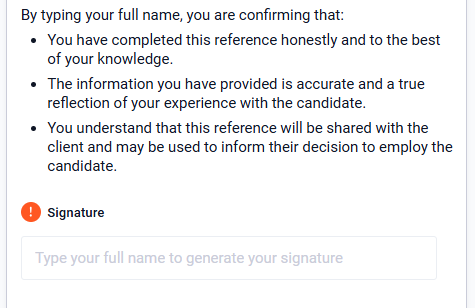
- Type your name into the Signature box and a digital signature will be automatically generated for you.
- Double-check your signature spelling is correct, as you will not be able to edit it once it is saved.
- Press the green 'I Consent' button to consent, save your signature, and continue.
Frequently Asked Questions
Why do I need to read the Consent Statement?
The Consent Statement confirms that the correct person has received the request and understands what they are consenting to before signing.
Can I change my digital signature after saving it?
No. Once your signature is saved, it cannot be edited, so ensure the spelling is correct before continuing.
How is my digital signature created?
Your digital signature is automatically generated when you type your name into the Signature box.
What happens after I press I Consent?
Your consent is recorded, your signature is saved, and you can continue with the next step in the process.
Need Help?
If you need assistance, please contact Referoo support via the chatbox on any Referoo page or email support@referoo.com.