Understanding Your Candidate Dashboard Summary Page
Quick Overview
Once you've provided your information, your Candidate Dashboard shows a Summary page. It lists everything you've submitted, shows whether each section is complete or underway, and lets you know whether you can still make changes.
If you can't see any red exclamation marks on the Summary page, everything is either complete or underway, and you can close the page.
What You'll See at the Top of the Page
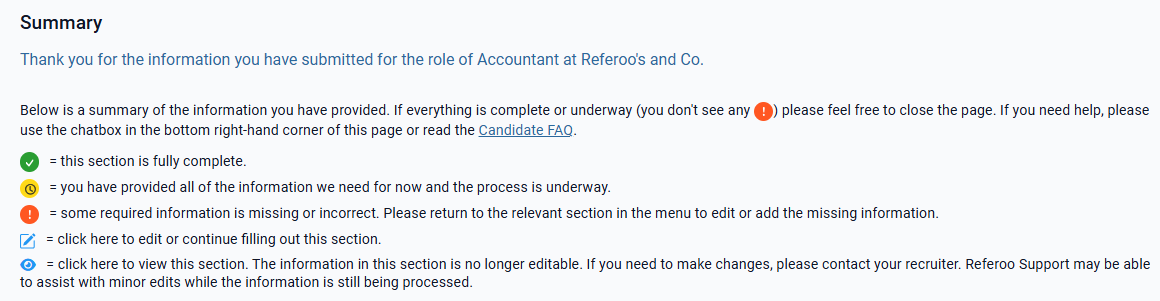
The Summary page opens with a message thanking you for your information and confirming the role and company it's for, so you can be sure you're looking at the right application:
Thank you for the information you have submitted for the role of [role] at [company]
Below this is a summary of the information you've provided, along with a key explaining the status icons.
What the Icons Mean
Status icons:
- Green tick: This section is fully complete.
- Yellow clock: You've provided everything we need for now, and the process is underway.
- Red exclamation mark: Indicates that some information may be missing or needs updating. Select the section to review the details and make any necessary changes
- EDIT (pencil icon): Select it to edit or finish this section.
- VIEW (eye icon): Select it to see what you provided. This section can no longer be changed.
Good to know: A yellow clock doesn't mean something is wrong. It means you've done everything needed for now, and Referoo or your recruiter is taking it from there.
Editing or Viewing Your Information
EDIT button
An EDIT button appears next to anything you can still change, including sections you haven't finished yet. Select it to go straight to that section.
You'll also see EDIT next to any referee who hasn't started your reference yet. Selecting it opens the Referees section with that referee's details ready to edit, which is the quickest way to correct an email address or mobile number. For more on updating referees, see How to Edit, Delete, or Add a Referee in Referoo.
VIEW button
A VIEW button appears next to anything that's locked, such as your confirmed personal details, a survey you've submitted, or a background check like a Police Check or Right to Work Check. Selecting it opens that section so you can look over the information, but you can't change it.
A referee’s entry shows a VIEW button once they’ve signed the consent statement and started your reference (their status in the Referees section changes to Referee Consented).
❗️ Note: If you need to change something that only shows VIEW, please contact your recruiter. Referoo Support may also be able to help with minor edits while your information is still being processed, so reach out via the chatbox.
Frequently Asked Questions
Can I close the page now?
Yes, as long as you can't see any red exclamation marks. Every section is then either complete (green tick) or underway (yellow clock).
Why does a section show a red exclamation mark?
Some required information is missing or incorrect. Select EDIT next to that section, or choose it from the menu, then add or fix the information.
Why can't I edit a section?
Sections with a VIEW button are locked, usually because the information has been confirmed and is being processed, or because a referee has already started your reference. Contact your recruiter if something needs to change, or reach out to Referoo Support via the chatbox for help with minor edits.
Are these the same icons I see in the Referees section?
No. The Referees section uses its own red, yellow and green statuses to show how far each referee has progressed. The Summary page uses the simpler key above. For the Referees section icons, see Referee Statuses.
I can't see a submit button. Have I finished?
Yes. Once you've submitted each section, there's no further submit button because your part of the process is complete. For more, see Have I Completed the Referoo Form Correctly? (No Submit Button Visible).
Need Help?
Please reach out to support@referoo.com or through the Referoo Chatbox on any Referoo
page if you have any questions!