Adding Your Referees
Getting started with the Candidate Dashboard
Your recruiter has chosen to use Referoo, an online platform that automatically contacts your referees by email and SMS to ask them to provide an online reference for you.
When you click the link in the email or SMS you received from Referoo it will take you to your Candidate Dashboard where you can enter, track and update your referee details.
Your referees will not be called unless the recruiter chooses to do so; Referoo is used to gather references securely online rather than over the phone.
Before you Begin
Before adding their details into Referoo please contact each of your referees and:
- Ask them for their permission to be nominated as a referee for a Referoo online reference check
- Tell them to keep an eye out for an email and SMS from Referoo so that your reference check can be completed as soon as possible
- Ask them for their contact details if you don't already have their email and (preferably mobile) phone number
If no email address is provided, in many cases the referee cannot be contacted to provide you with a reference.
If you are unable to provide the required details please contact your recruiter to ask if they will be open to completing a phone reference for your referee(s). Their contact details can be found in the email you received or in the top right-hand corner of your Candidate Dashboard.
Signing the Consent Statement
Press the grey 'Read Policy' option to read through the Consent Statement.
Type your name into the Signature box and a digital signature will be automatically generated for you.
Double-check your signature spelling is correct as you will not be able to edit it once it is saved.
Press the green 'I Consent' button to consent, save your signature and continue on.
Reviewing your details
Your recruiter has entered your details, so please check and update them if necessary. If you see fields for the name of the role and the name of the company you are applying for, these can be left blank if not known or not relevant.
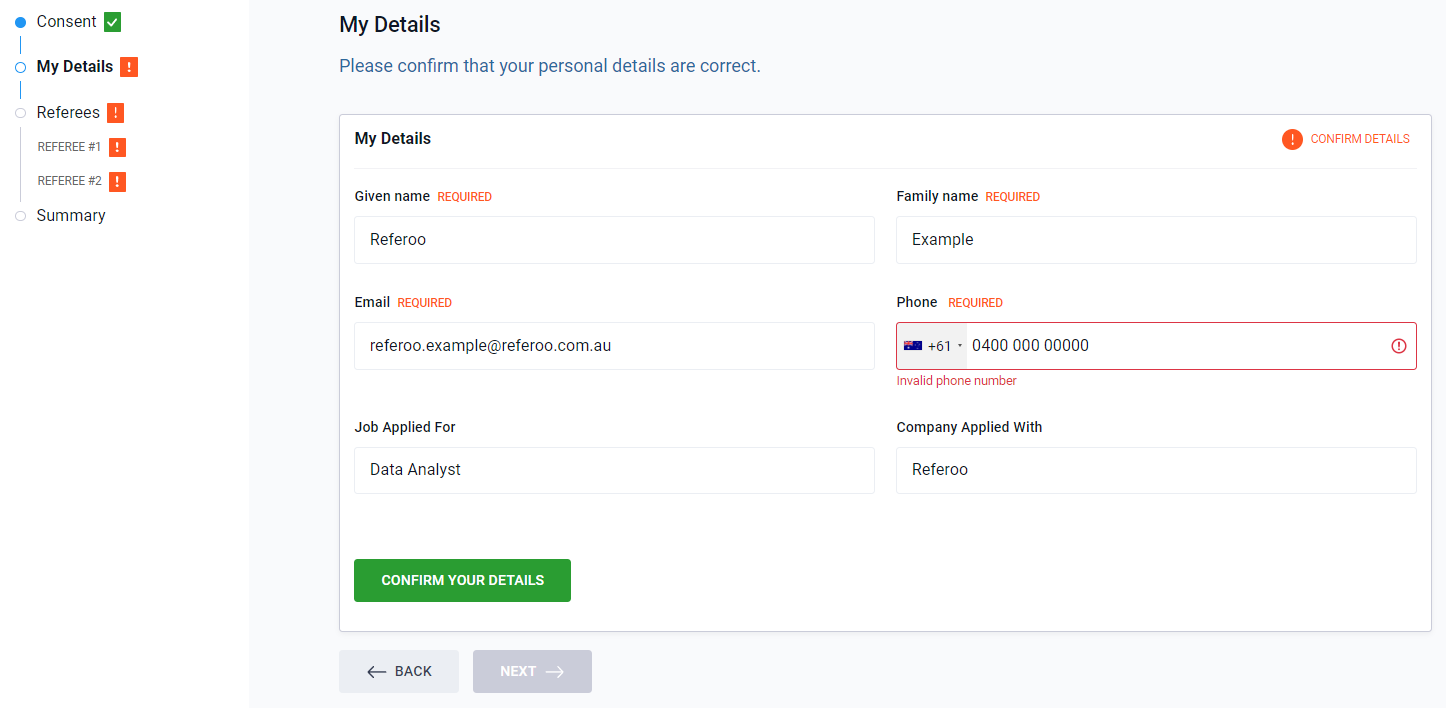
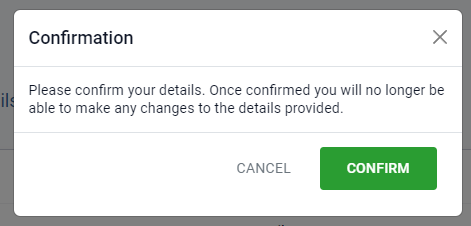
Please note that once confirmed, you will not be able to edit these details.
Completing a Digital ID Check
Steps to Complete a Digital ID Check
If you are asked to complete a Digital Identity (ID) Check through Referoo, the Verify Identity section will be shown on your Candidate Dashboard.
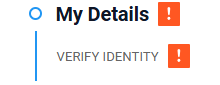
The Digital ID section may not be visible when you first access your Candidate Dashboard. A Digital ID Check can be requested by your Recruiter/HR Manager at any time.
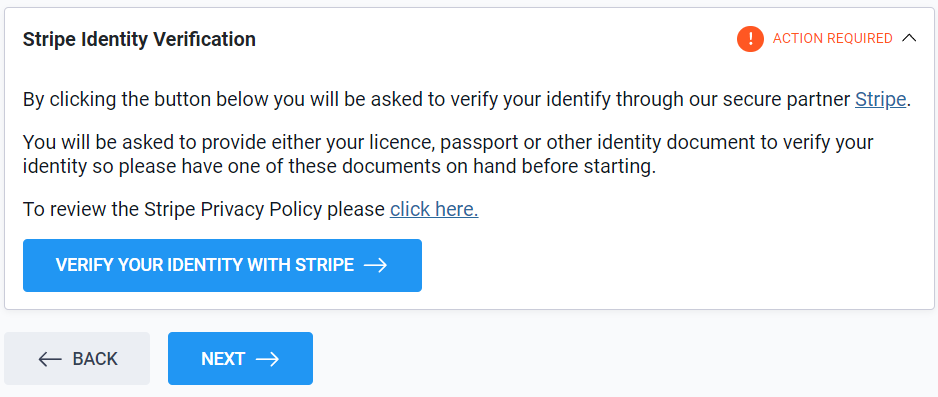
It is recommended to complete the Digital ID Check straight away, but you can press the 'Next' button to continue through to provide your other Check details first, then return to complete it at a later time.
It generally takes only a few minutes to complete if you have your licence/passport/visa documents close-by.
Completing the Digital ID Check
From your Candidate Dashboard select 'Verify your identity with Stripe' shown in the image above.
Continue through the prompts, noting that if you prefer not to use the QR Code, select the 'Other options' button underneath to see other ways to complete the Digital ID Check.
⚠️Providing the ID Document⚠️
- The types of Photo ID Documents that can be submitted vary per country
- You can choose which type of acceptable ID you want to submit
- You can only submit one ID Document for each Stripe Digital ID request
- The acceptable documents are listed per country on Stripe's website
It generally takes <2 minutes for Stripe to process your Digital ID Check.
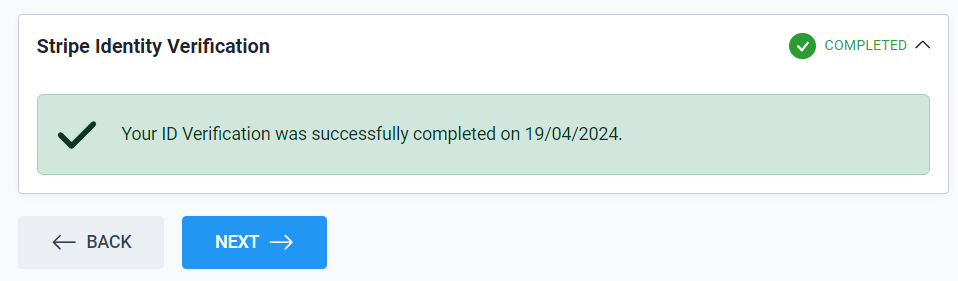
Once done you will see the a green tick and confirmation message on your dashboard.
Digital ID Reminders and Email Notifications
You will continue to receive email reminders from Referoo for a number of days if you choose not to complete the Digital ID Check right away. Your Candidate Dashboard will clearly show a green completion tick once it is all done and processed, but you will not receive another email confirming you have completed it.
Entering the Referee Details
You will see the referee sections when you reach the referee section. The number of referees requested by your recruiter will determine how many referee sections will be available to you.
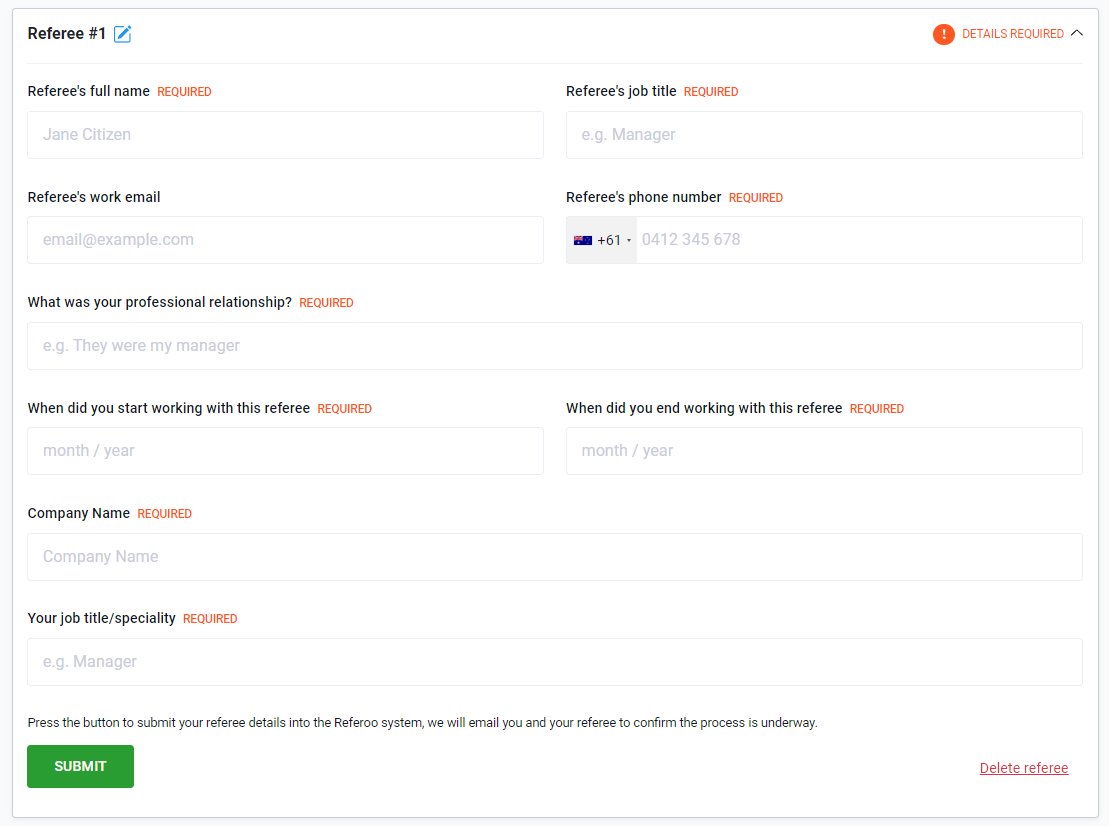
After submitting all of the details for the number of referees requested by the recruiter, you can use the 'Add another referee' button to add more referees in if you wish to do so.

Please provide all details including the email address and (preferably mobile) phone number of each referee so we can email and/or text them a link to the secure online form for them to complete the reference.
Adding all of the requested details will help each of your referees recall your working relationship with them, and will provide more information to your recruiter/hiring manager when the reference is completed. Each referee will have the opportunity to review and amend these details while completing the reference check.
An incorrect referee email address will bounce back and we will email you to ask that you update the address. If you do not have a phone number and an email address for each referee, we may not be able to collect a reference for you.
Tips:
If you're unsure of exact start and end dates, they are free-text fields so you can enter in 'Approx Nov 2018' or similar.
Some recruiters/hiring managers allow a mobile phone number to be provided with no email address, so that an SMS message invite can be sent out to that referee's mobile phone.
You can add one referee at a time if you like, just return to your candidate dashboard to add in the details for additional referees.
The 'Add Referee' button will appear once you have entered the amount initially requested by your recruiter, so you can then add in additional referees if needed.
The Next Steps
Referoo will notify your recruiter/hiring manager that you have entered the details for your referees
They may be automatically contacted immediately, or your recruiter/hiring manager will send an email and/or a text message from Referoo with the reference request invitation to your referees
Your referees complete the online questions at their convenience. Keep checking back on your candidate dashboard to see their status!
Referoo passes the completed references back to your recruiter/hiring manager
Your recruiter/hiring manager will then contact you with information on the next steps of the recruitment process.
Managing your Referees
Please see our guide here for editing, deleting and understanding the status of each of your referees:
Please reach out to support@referoo.com or through the Referoo Chatbox on any Referoo page if you have any questions!