Start Your Police Check Step-by-Step (Referoo and TrueVault)
How to Complete Your Police Check in Referoo and TrueVault Smoothly
Getting Started With Your Dashboard
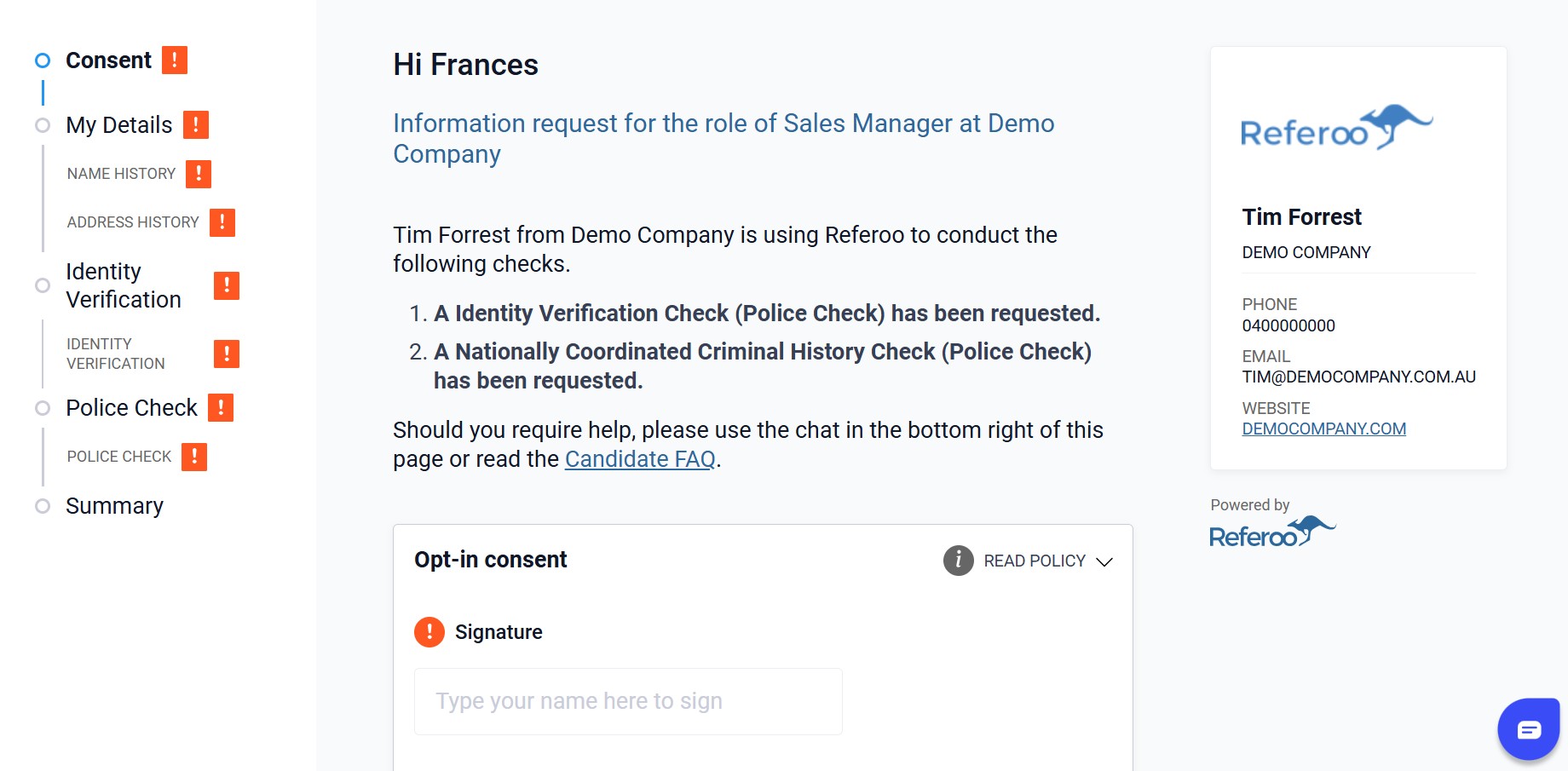
Your HR Manager/Recruiter has chosen to use Referoo, an online platform that sends you email and SMS notifications to complete your Police check.
When you click the secure link in the email or SMS from Referoo, you will be taken to your Dashboard, where you can:
- Sign the consent statement
- Enter your name history
- Enter your address history
- Complete your Identity Verification Check (Police Check)
Signing the Consent Statement
- Press the grey 'Read Policy' option to read through the Consent Statement.
- Type your name into the Signature box and a digital signature will be automatically generated for you.
- Double-check your signature spelling is correct as you will not be able to edit it once it is saved.
- Press the green 'I Consent' button to consent, save your signature and continue on.
My Details
In this section, please enter all required information exactly as it appears on your passport or other official identity documents.
Make sure to check:
- Spelling of your name
- Date of birth format (DD/MM/YYYY)
- Place of birth
- Birth State
- Birth City
Before clicking the 'Confirm Your Details' button, please double-check all the information to ensure it is accurate and correct. It's important that all information is accurate to prevent any delays in processing your check. Once you confirm, changes can no longer be made.
Name History
This section is If you've ever gone by another name previously such as:
- Maiden name
- Aliases or nicknames
- Change of name
Before clicking the 'Confirm Name History' button, please ensure you enter your full name that includes middle names. i.e. your full maiden name inclusive of all middle names.
It's important that all information is accurate to prevent any delays in processing your check. Once you confirm, changes can no longer be made.
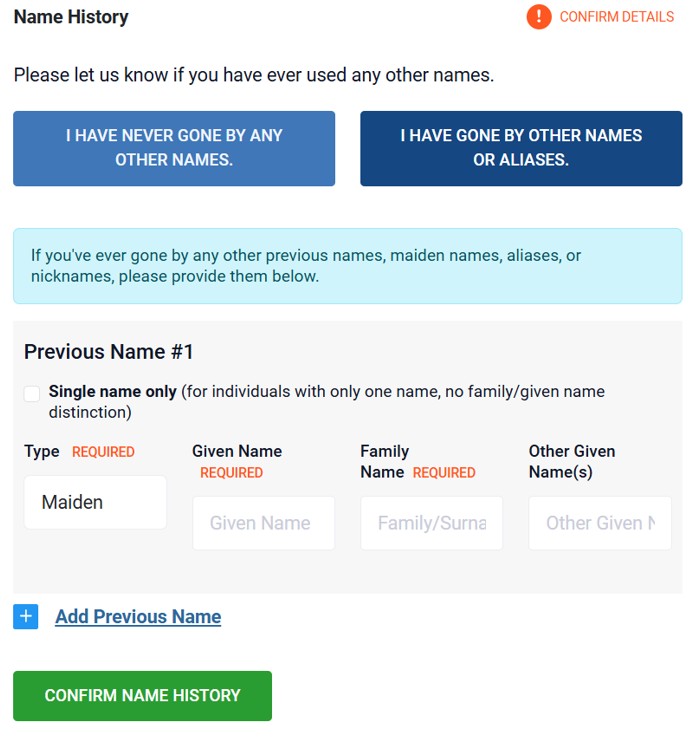
If you have never had a name change, you can proceed with I Have Never Gone By Any Other Names
Please double-check all the information to ensure it is accurate and correct. It's important that all information is accurate to prevent any delays in processing your check. Once you confirm, changes can no longer be made.
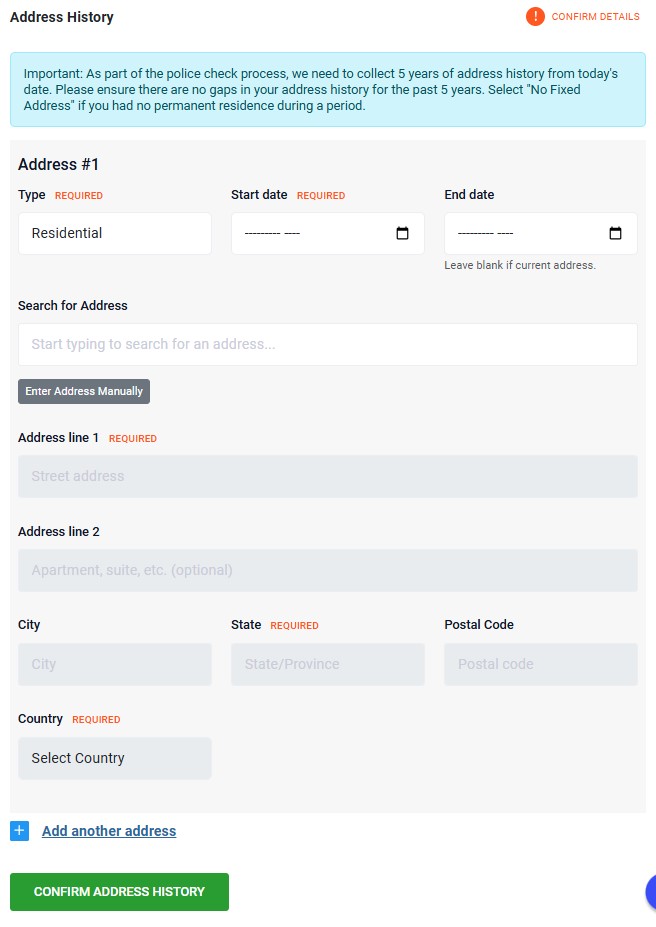
Address History
It is required that you enter in your address history for the last five years. This includes international addresses. Please note that gaps are not permitted. Ensure you include full addresses that include the street number or unit and street number. Entering in street names without a street and/or unit/street number will not be accepted.
If you have not had a fixed address you can select No Fixed Address.
Payment for Checks (if applicable)
If applicable, you might see a payment request at the bottom of your My Details section. To proceed with the requested background check by your recruiter, you must enter your credit card details into the card number field and select PAY NOW.
Sample of payment request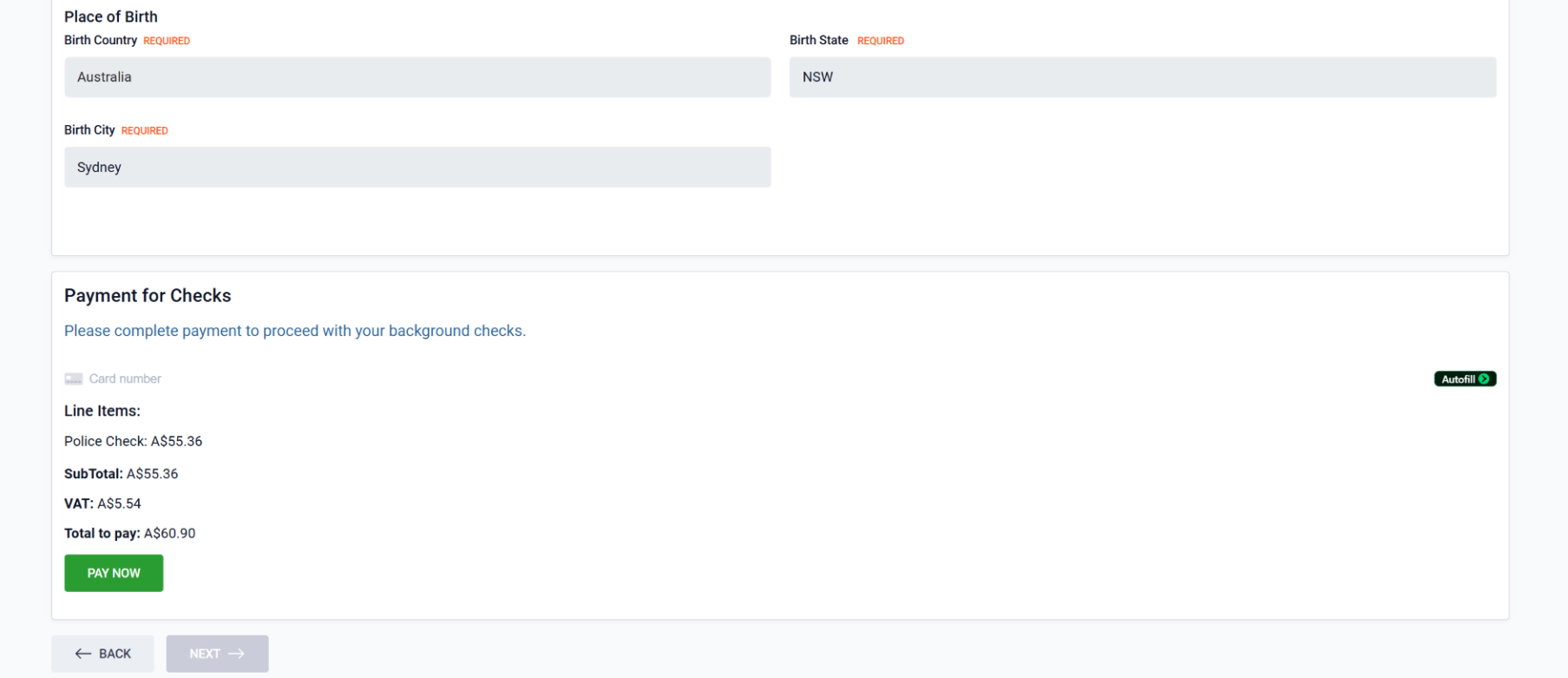
Identity Verification - TrueVault
Your identity verification will be completed through TrueVault, our trusted identity verification partner.
TrueVault is an Australian digital identity platform that helps organisations securely verify individuals online. They use government verification services and biometric technology to confirm identity while protecting personal information.
To begin your identity verification check you will need to click on Start Your Identity Check.
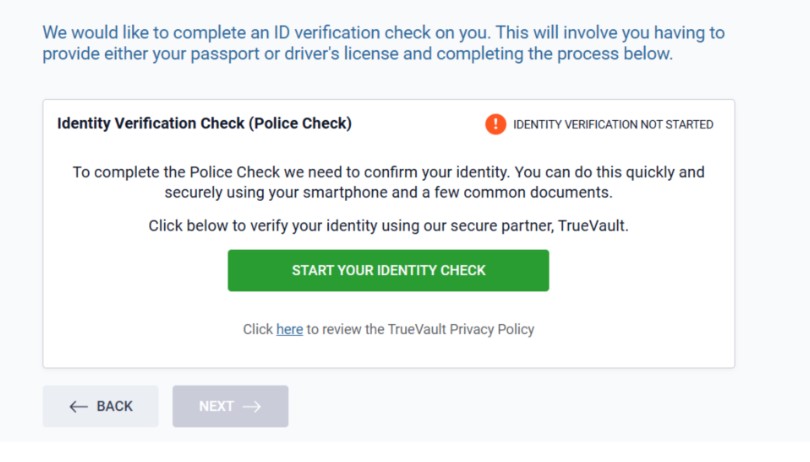 You may or may not have an existing record in TrueVault. If you do, you are still required to re-authenticate yourself to continue with the check by selecting Proceed to my TrueVault.
New Users
If you do not have an existing record with TrueVault, you will be prompted with the option to begin the 3 step verification. 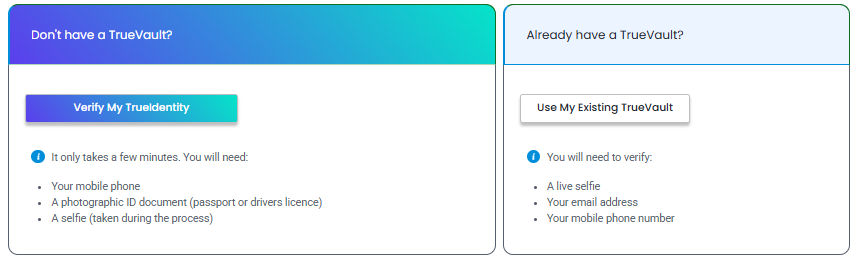
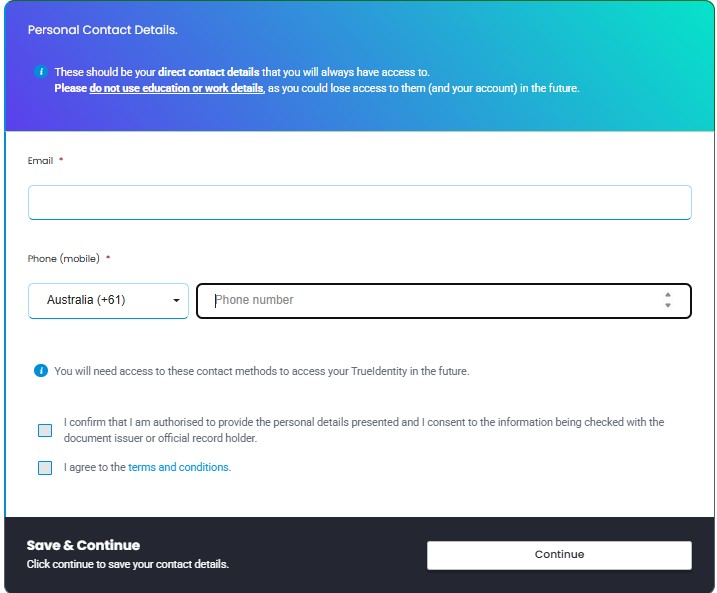
Step 1 Confirm your personal contact details
You must confirm your pre-prompted contact details and tick the consent boxes to proceed.
Step 2 Submit verification codes
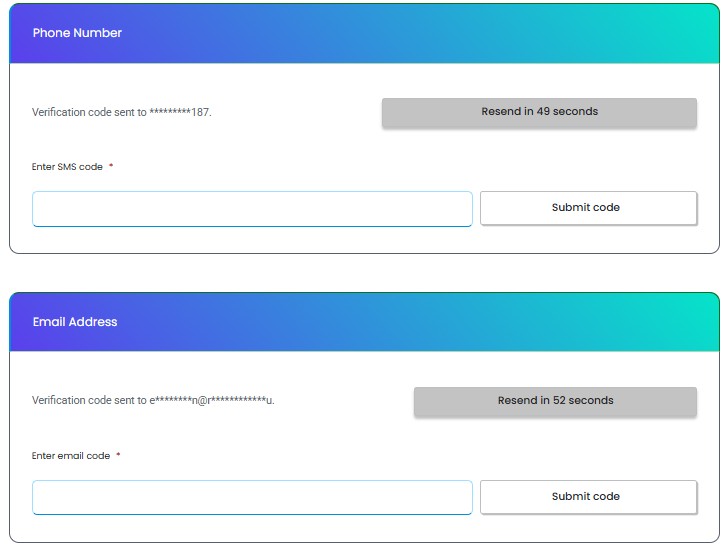
Click on the send code button to trigger the codes to be sent to your email and mobile device. Once you have received the verification codes, please enter them in the field provided and submit the codes.
Step 3 Document verification
You will require 3 forms of identification documents to verify your identity. You must submit genuine originals of your identification documents. For your first form of identification document, you must select one of the following:
- Current/Valid Australian Passport
- Current/Valid Foreign Passport + Current/Valid Australia Visa
- Current/Valid Australian Drivers Licence
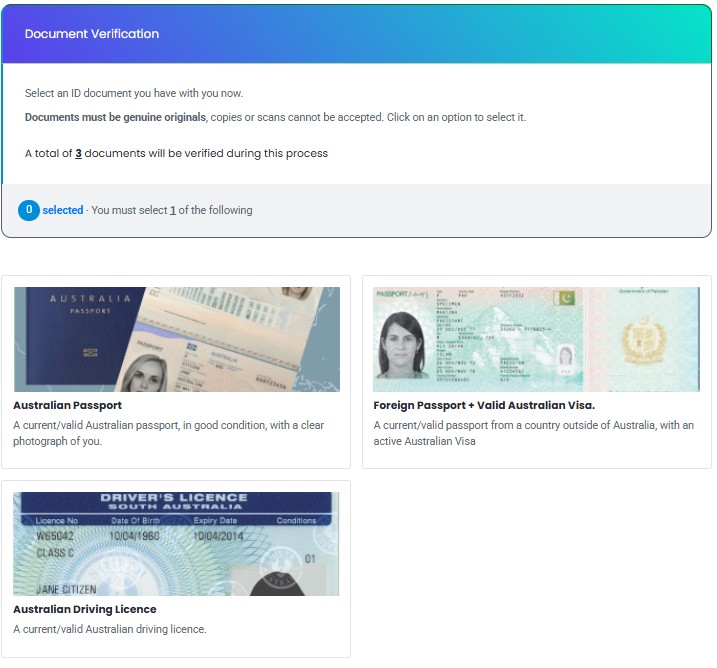
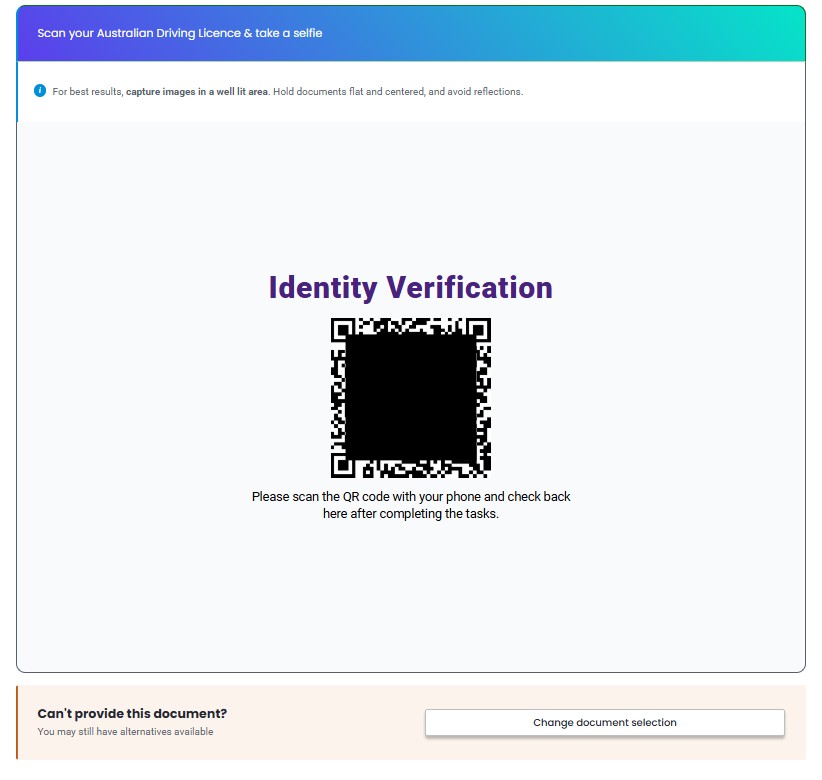
If you are using a desktop, you are required to scan a QR code on your mobile device to take images of your identity document/s and a liveness match. Please ensure that you have enabled camera permissions on your mobile device.
To ensure successful verification:
- Clean your phone's camera lens.
- Ensure you are in bright light, either natural, or a well lit area.
- Ensure you hold your phone still.
- Avoid glare, reflections or obstructions.
- Do not cover the document with your fingertips.
- Documents must be original. Photos or digital documents will not be accepted.
- Carefully follow the on-screen instructions.
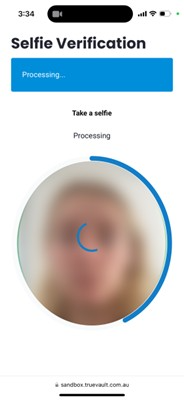
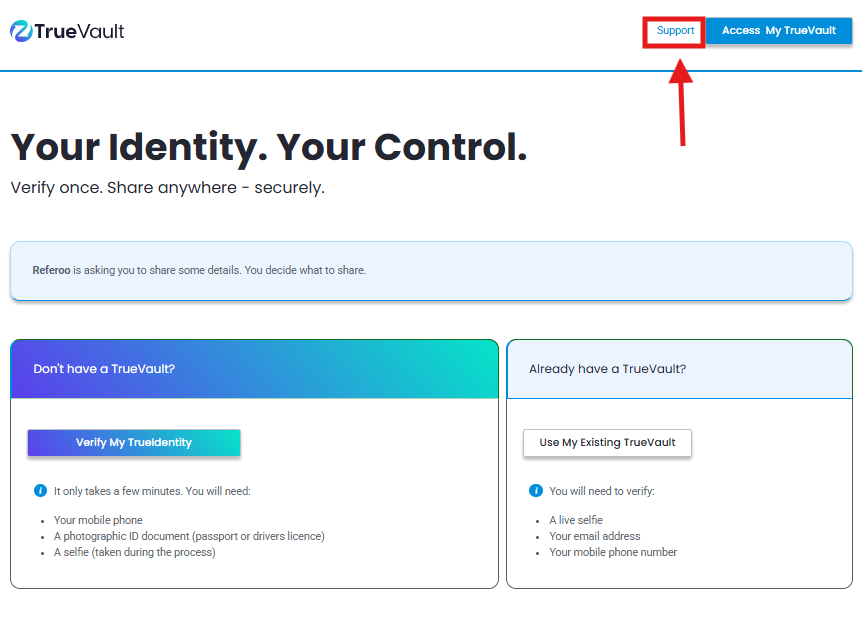
⚠️ If you are experiencing issues with Live selfie verification, please reach out directly to the ⚠️
TrueVault support team 1300 195 055 9am - 5pm (Monday-Friday) or you can directly submit a request in the portal.
Once the verification is complete you will be prompted to review and submit your identity document details to complete the verification.
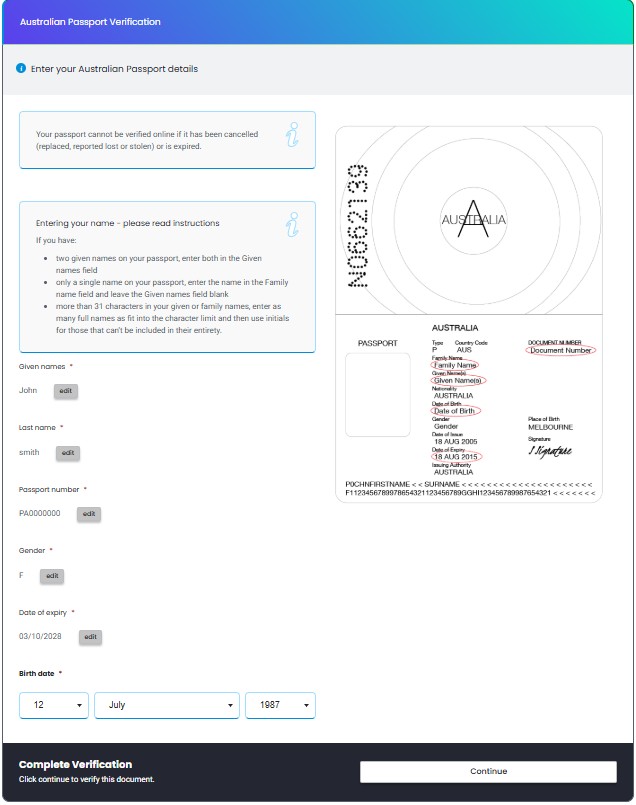
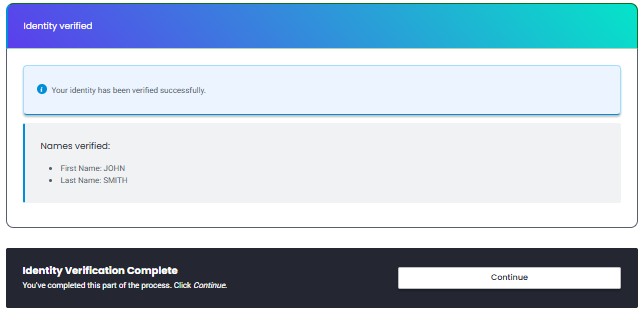
After submitting your first identity document, you will be required to submit the remaining two documents by following the same Steps 1–3 outlined earlier
The only documents acceptable are:
- Australian Birth Certificate
- Australian Citizenship Certificate
- Current/Valid Foreign Passport + Current/Valid Australian Visa.
- Australian ImmiCard
- Current/Valid Australian Driving Licence
- Current/Valid Medicare Card
- Current/Valid Centrelink Concession Card
- ConnectID
- Aviation or Maritime Security Identification Card
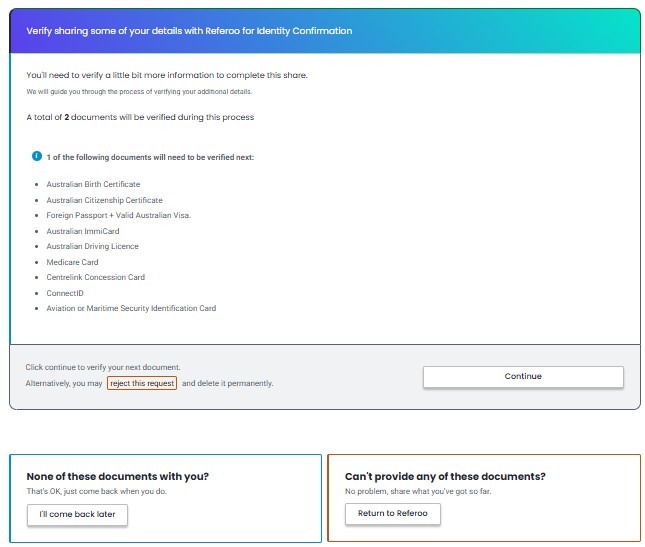
If you do not have the above documents with you or you wish to come back at a later time to submit the documents. You can click on the 'I'll come back later' option on the bottom-left-hand side to exit and come back to resume your document upload.
Confirming TrueVault Sharing Request
Once all documents have been attached and your identity verified, you will be asked to approve the details you will be sharing.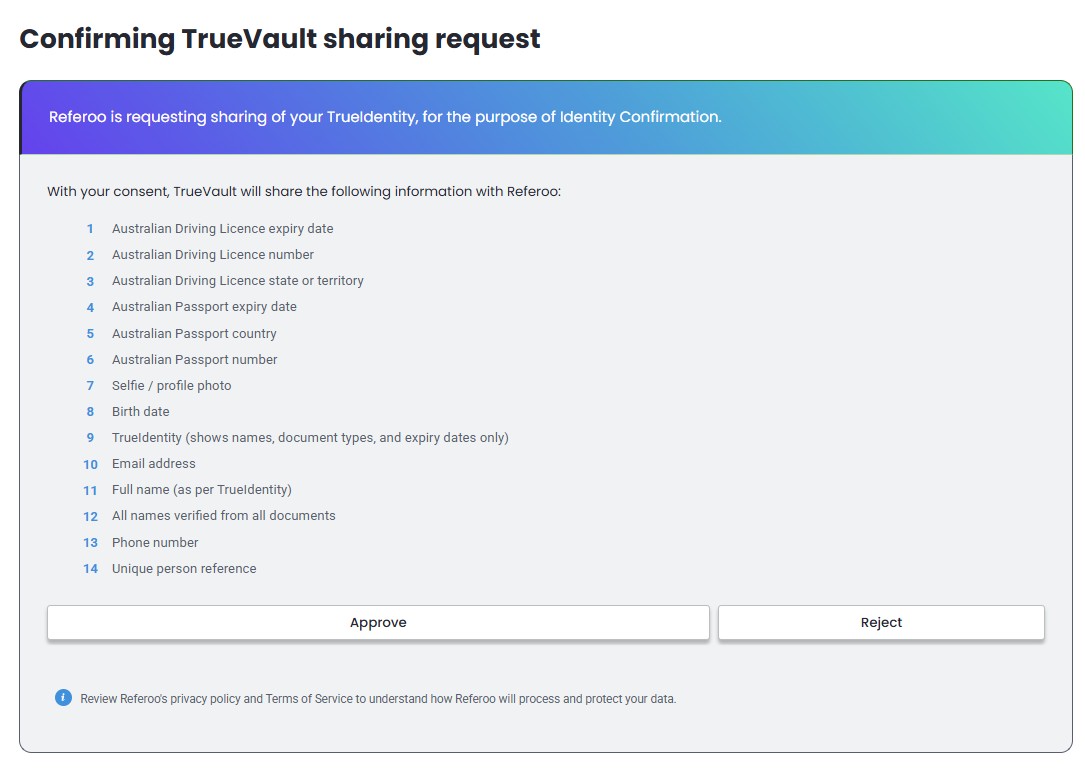
Manual Verification
If you are unable to provide the remaining requested documents , than there is an alternate option of a manual review of documents listed in our guide below. Manual verification allows old birth certificates, expired passports within the last 2 years or any documents that weren't captured correctly through a photo.
To proceed with a manual verification, select the Return to Referoo option.

Once you are back to your Referoo Dashboard please select Use Alternative Option and Proceed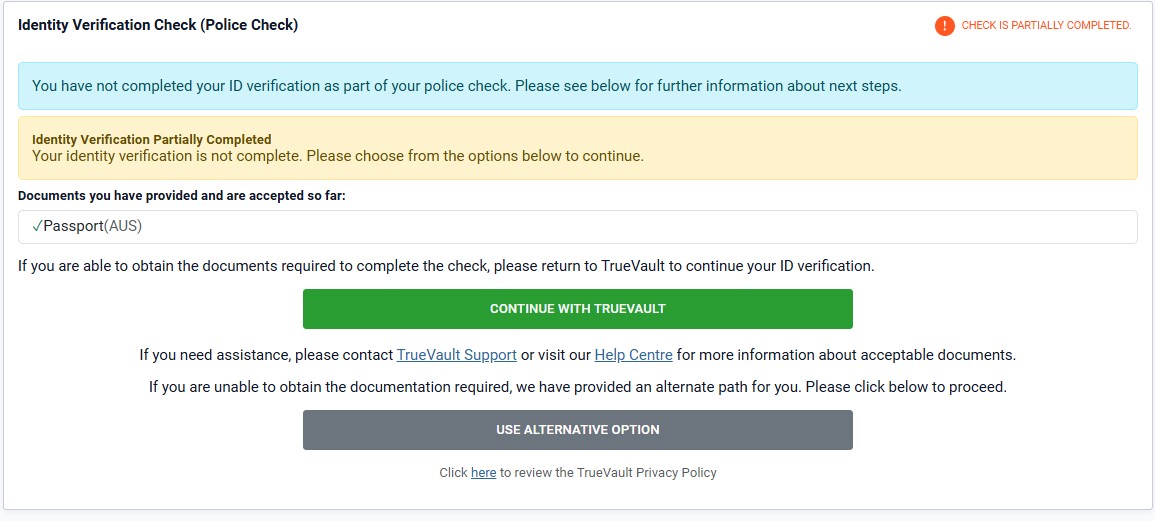
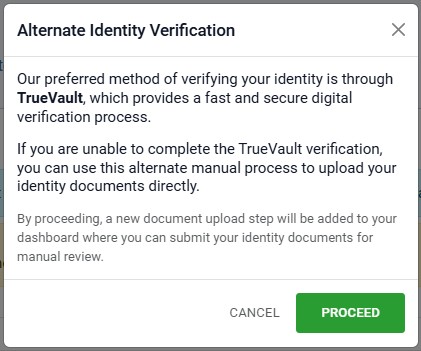
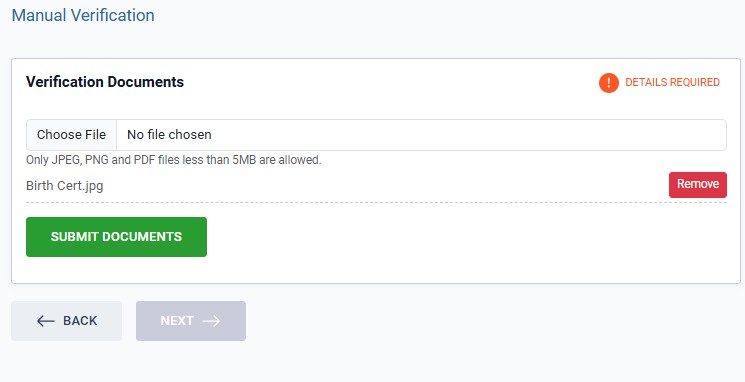
Upload and submit your alternative document, please note that you can upload more than 1 file and only JPG and PDF file types less than 5MB are allowed.
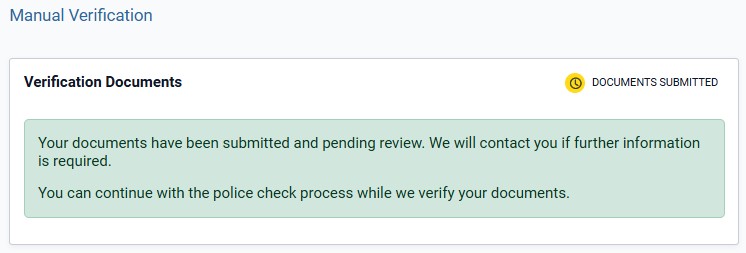
After submitting your documents your Manual Verification will be ready for review.
Existing Users
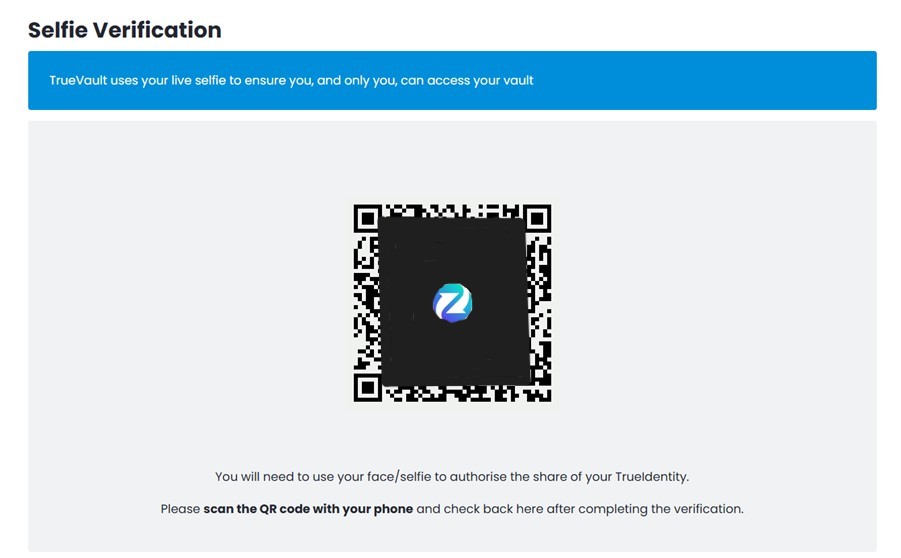
If you have used TrueVault previously, TrueVault profiles (TrueIdentity) will recognise your profile via the initial selfie capture and will then send codes to the enrolled phone and email address by selecting option to Proceed to my TrueVault account.
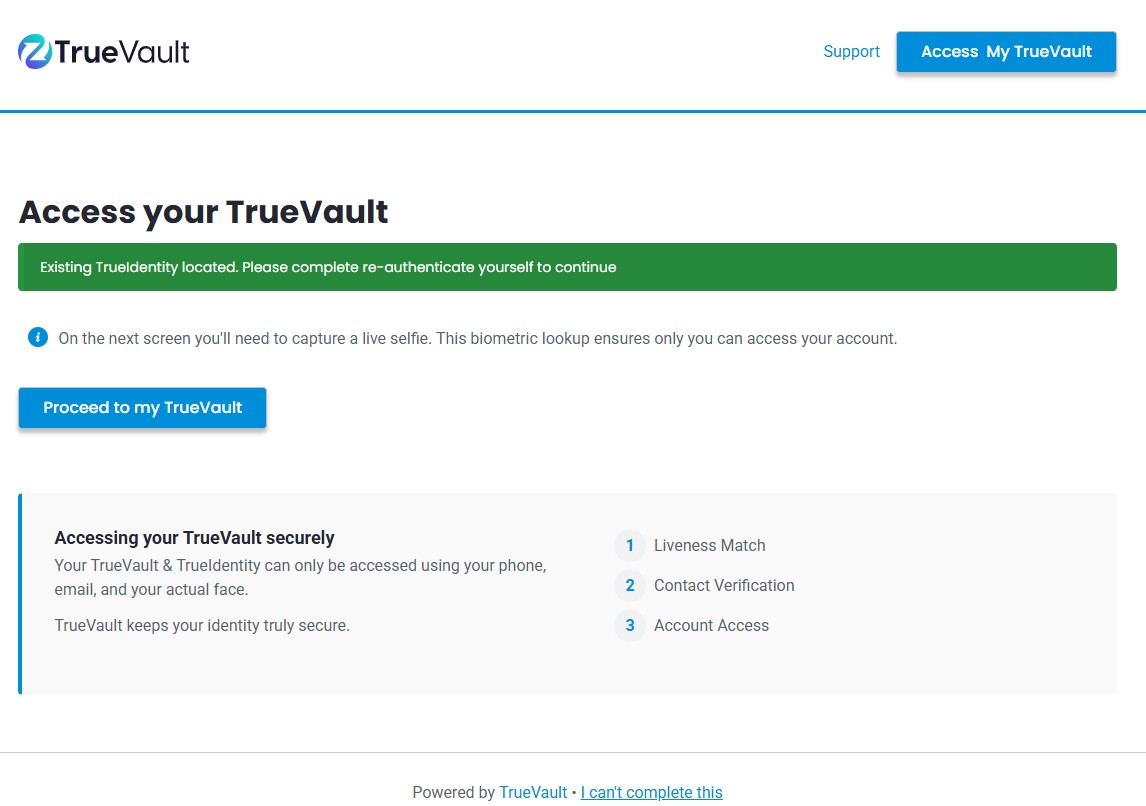
If you are using a desktop , you are required to complete liveness match. by scanning a QR code on your mobile device to complete a selfie verification. Please ensure that you have enabled camera permissions on your mobile device.
To ensure successful verification:
- Clean your phone's camera lens.
- Ensure you are in bright light, either natural, or a well lit area.
- Ensure you hold your phone still.
- Avoid glare, reflections or obstructions.
- Do not cover the document with your fingertips.
- Documents must be original. Photos or digital documents will not be accepted.
- Carefully follow the on-screen instructions.
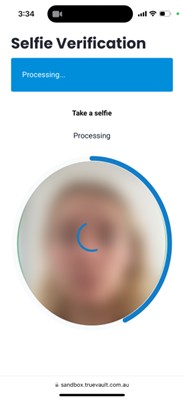
⚠️ If you are experiencing issues with Live selfie verification, please reach out directly to the ⚠️
TrueVault support team 1300 195 055 9am - 5pm (Monday-Friday) or you can directly submit a request in the portal.
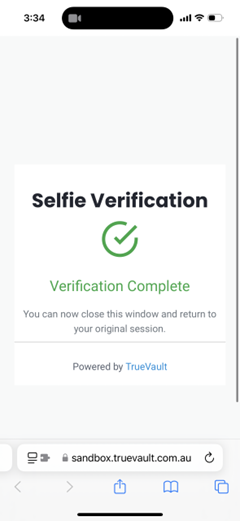
Confirm Your Contact Details
To confirm your contact details, review the details and tick the authorisation boxes before selecting Continue.
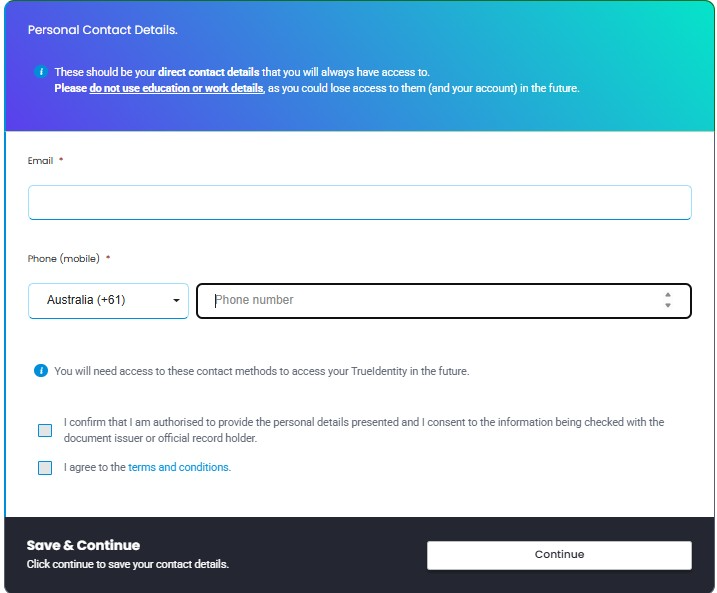
Click on the send code button to trigger the codes to be sent to your email and mobile device. Once you have received the verification codes, please enter them in the field provided and submit the codes.
Confirming TrueVault Sharing Request
Once you have verified your contact details confirming your identity, you will be asked to approve the details you will be sharing.
Submitting the Check
On your Referoo candidate dashboard, please agree to the terms and conditions for your police check to proceed by ticking the I agree to the terms and conditions box and Submit.
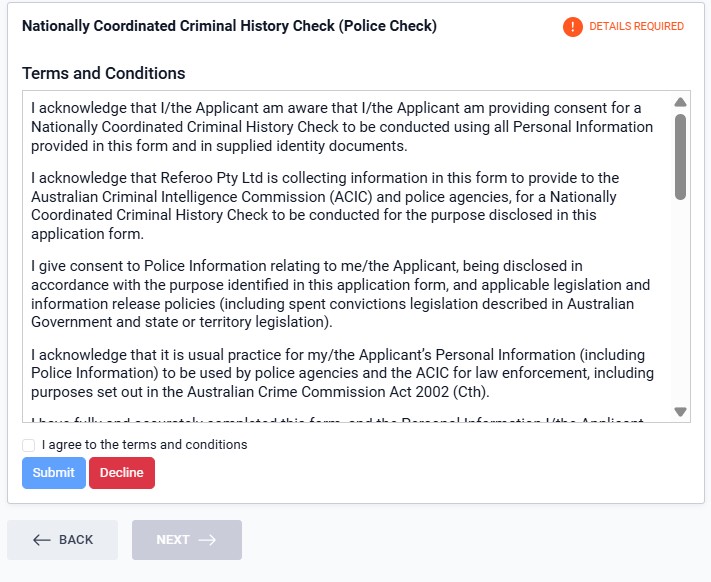
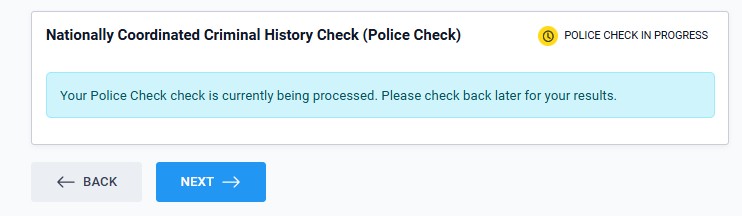
Your dashboard will now appear in the Police check status as in progress.
Frequently Asked Questions
Please reach out to support@referoo.com or through the Referoo Chatbox on any Referoo page if you have any questions!