How to Add Your Referees in Referoo
Quick Overview
This article explains how to add and manage referees using the Referoo Candidate Dashboard. It outlines what to prepare before you begin, how to enter referee details, and what happens after submission.
Getting Started with the Candidate Dashboard
Your recruiter has chosen to use Referoo, an online platform that automatically contacts your referees by email and SMS to request an online reference.
When you access the link in the email or SMS from Referoo, you will be taken to your Candidate Dashboard where you can enter, track, and update referee details.
Your referees will not be called unless the recruiter chooses to do so. Referoo is primarily used to gather references securely online rather than over the phone.
Before You Begin
Before adding referee details into Referoo, contact each referee and:
- Ask for their permission to be nominated as a referee for an online reference check.
- Let them know to expect an email and SMS from Referoo.
- Collect their email address and preferably a mobile phone number.
If no email address/mobile number is provided, in many cases the referee cannot be contacted. If you are unable to provide the required details, contact your recruiter to discuss whether a phone reference is possible. Their contact details can be found on the right-hand side of your dashboard or in the body of the email you received if you are using a desktop or at the top of your dashboard if you are using a mobile device.
Signing the Consent Statement
To continue, you must review and sign the Consent Statement:
- Press the grey ‘Read Policy’ option to review the statement
- Type your name into the signature box to generate a digital signature
- Double-check spelling before saving, as it cannot be edited
- Press the green ‘I Consent’ button to continue
Reviewing Your Details
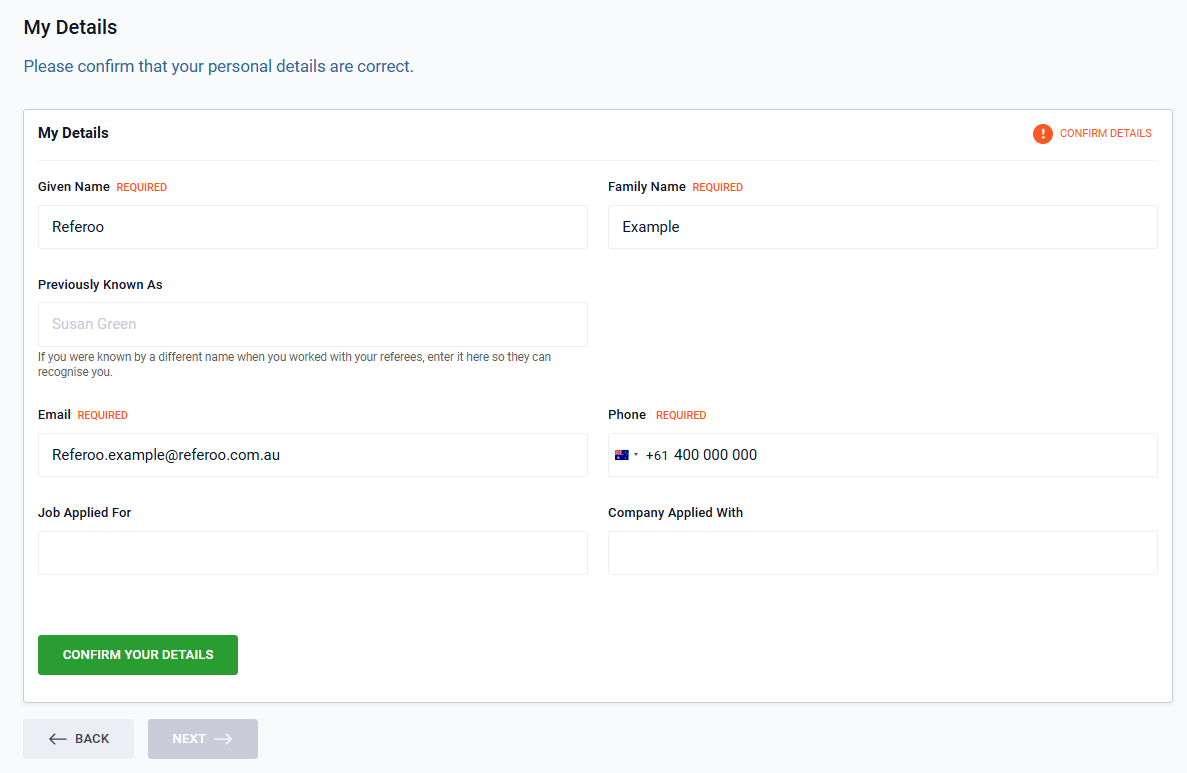
Your recruiter has entered your personal details. Review them carefully and update if required. Some fields, such as role or company name, can be left blank if not known.
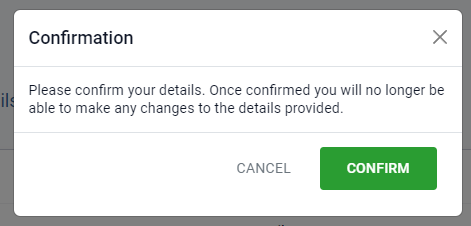
There is also an option to enter in Previously Known As field. This field is for if you were known by a different name when you worked with your referees so that they can recognise who you are e.g. your maiden name or a preferred name you used. Once confirmed, these details cannot be edited.
Completing a Digital ID Check
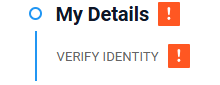
If requested, the Verify Identity section will appear on your Candidate Dashboard. A Digital ID Check may be requested at any time by your recruiter or HR manager.
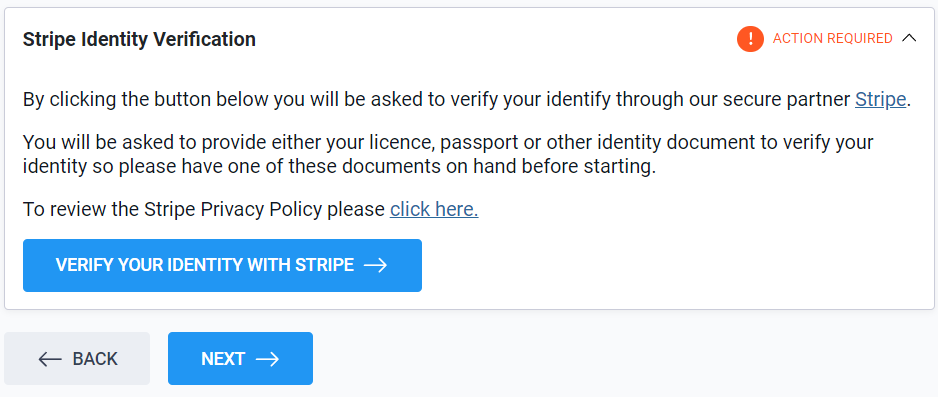
From your Candidate Dashboard select 'Verify your identity with Stripe' shown in the image below.
Continue through the prompts, noting that if you prefer not to use the QR Code, select the 'Other options' button underneath to see other ways to complete the Digital ID Check.
 It is recommended to complete the Digital ID Check straight away, although you may proceed and return later. The process usually takes only a few minutes if you have your identity documents ready.
⚠️ Providing the ID Document ⚠️
- Acceptable photo ID types vary by country
- You can choose which acceptable ID to submit
- Only one ID document can be submitted per Stripe request
The acceptable documents are listed per country on Stripe's website
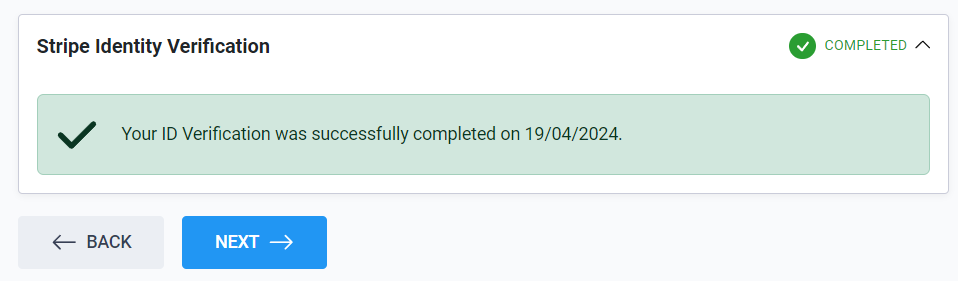
Stripe generally processes the Digital ID Check in under two minutes. Once complete, a green tick and confirmation message will appear on your dashboard.
Digital ID Reminders
If the Digital ID Check is not completed immediately, email reminders will continue for several days. Once completed, a green tick will display on your dashboard, but no confirmation email will be sent.
Entering Referee Details
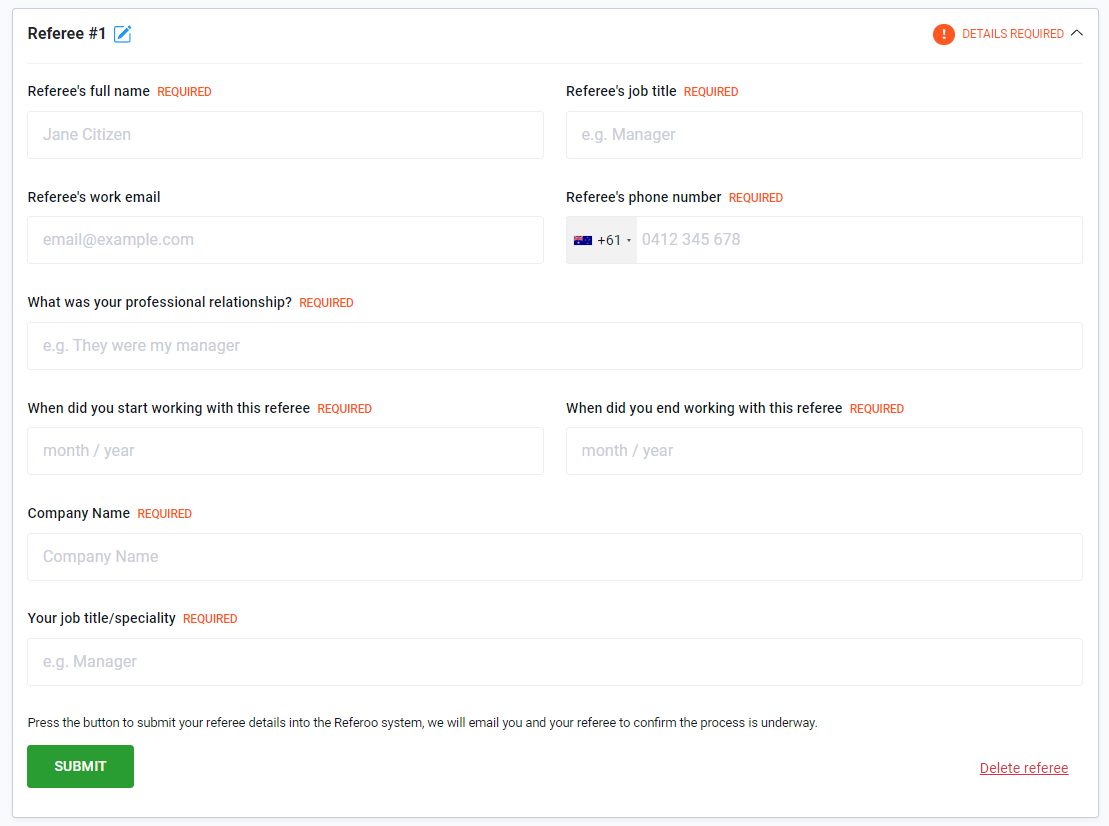
Referee sections will appear based on the number requested by your recruiter.
⚠️Email Error⚠️
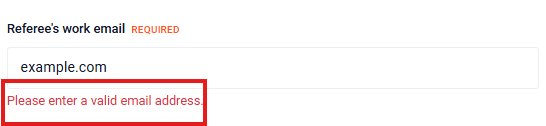
An error will occur and you will not be able to submit your referees details if you enter the incorrect email such as:
- No '@'
- Spaces in the email
- Typos e.g. @gnail, cmo etc.
Please ensure that you review the email and submit the referee again.
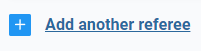
After entering the required number, you may use the ‘Add another referee’ option to include additional referees.
Provide full details, including email address and preferably a mobile phone number, so referees can be contacted via email or SMS.
Adding all of the requested details will help each of your referees recall your working relationship with them, and will provide more information to your recruiter/hiring manager when the reference is completed. Each referee will have the opportunity to review and amend these details while completing the reference check.
An incorrect referee email address will bounce back and we will email you to ask that you update the address. If you do not have a phone number and an email address for each referee, we may not be able to collect a reference for you.
⭐️ Tips for Entering Referee Details ⭐️
- Start and end dates are free-text fields and can be approximate
- Some recruiters allow SMS-only invitations
- You may add referees one at a time by returning to the dashboard
- The Add Referee option appears after entering the initially requested number
Next Steps
After submission:
- Your recruiter is notified
- Referees may be contacted automatically or manually
- Referees complete the online questions
- Completed references are returned to the recruiter
- Your recruiter will advise on the next recruitment steps
Viewing Communications Status
You will be able to view the communications that were sent to your referees by accessing the Referees page. At the bottom of the selected referee's profile you will be able to see an auto-communication section. Here you will be able to see each contact attempt with the timestamp and time zone;
- Pending - This means that the communication is queued in line to be sent out. We send out communications during business hours of your referees time zone.
- Sent - This means that the invite was successfully sent out/delivered to your referee.
- Not Delivered - Blocked - This means that your referee's email blocked/unsubscribed to our emails and we were unable to deliver the invite. If a landline was entered in as a contact number the status will remain as not delivered.
- Not Delivered - Bounced- This means that we were unable to deliver the invite. Some common causes are:
- Typo or Invalid Address: The email address entered incorrectly or the user deleted the account.
- Full Mailbox: The referee's inbox has exceeded their storage limit.
- Server Blocking: The receiving mail server blocks our message due to strict security or missing authentication records.
Please note : If a landline was entered in as a contact number the status will remain as not delivered.

Auto-send off
This means that your recruiter would like to review your referees before they manually send the invites to your referees. 
Managing Your Referees
You can edit, delete, or track referee status' from your dashboard using the Managing Your Referees guide.
Frequently Asked Questions
Do my referees get called?
Referees are only called if the recruiter chooses to do so. Referoo primarily collects references online.
How do I add a new referee?
Referee sections will appear on your Candidate Dashboard based on the number requested by your recruiter. Complete the required fields and press Submit.
Can I add more referees than requested?
Yes. Once you add the initially requested number, you can add additional referees if needed. Select the 'Referee' section title on your menu bar and click on +Add another referee button on the screen.
Where do I manage my referee information?
All referee details are managed within the Referees section of your Candidate Dashboard. On a computer, the menu appears on the left-hand side; on a mobile phone, it appears at the top of the page.
What happens if I enter an incorrect email address?
If an email bounces back, Referoo will notify you so the address can be updated.
Is the Digital ID Check mandatory?
It is only required if requested by your recruiter or HR manager.
What happens after I create my referees?
Once you've added your referees, we reach out to them via email and/or SMS. Your referees will need to respond to the request. It's recommended to let them know about the request in advance.
How do I know if my Referees are contacted?
You will be able to view the communication status' on your referee's profile. Select the 'Referee' section title on your menu bar and select the referee you want to check. Scroll down to the bottom of the referee's profile and you will see a section Auto Communication.
Need Help?
If you need assistance, please contact Referoo support via the chatbox on any Referoo
page or email support@referoo.com.