What is a National Criminal History Check?
Also known as: Package Manager, Package Overrides, Package Options
Quick Overview
Packages let you bundle a combination of Referoo Checks and features together, so your users only need to pick one option from the Package dropdown to apply everything a candidate needs. Packages also work as a compliance tool, making sure certain Checks and features are always used together, and never mixed with ones they shouldn't be.
With Package Overrides, you can also choose which settings in a Package your users are allowed to change when they create a request, such as the number of references or the police check position title. This means one Package can cover many similar roles, instead of you maintaining a long list of near-identical Packages.
Good to know: Packages are available through most integrations. To check whether your integration supports Packages, please refer to the integration's Setup Guide in this Help Centre.
Will Packages be helpful for my team?
If your team uses any mix of the options below, and certain options should always be used together (or never used together), Packages will be helpful for you.
- Multiple Brands
- Custom Email Templates
- Multiple Questionnaires
- A varied number of references required from each candidate
- Referoo Teams
- Background checks such as Police Checks or Right to Work Checks
If your Packages are very similar and only differ by the number of references, the questionnaire, the candidate survey or the police check position and location, Package Overrides can help you cut them down to a smaller set.
Enabling Packages
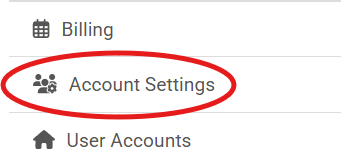
The Parent Account Holder can enable Packages through Settings > Account Settings.
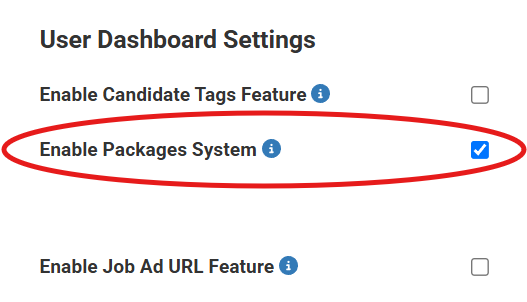
Scroll down and tick the box next to Enable Packages System.
Then press Update User Dashboard Settings to save your changes.
Turning on Package Overrides
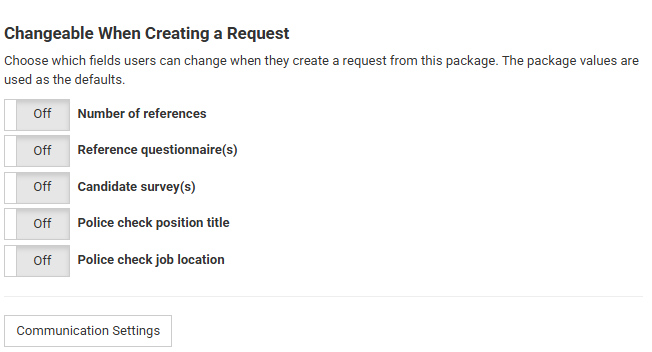
Package Overrides is switched on for your account by the Referoo Support Team. If you'd like to use it, contact us at support@referoo.com or through the chatbox and we'll turn it on for you. Once it's on, a new Changeable When Creating a Request section appears on each of your Packages.
Please note: Package Overrides only works with the standard Package editor described in this guide. It can't be turned on for accounts that use the Package Builder.
Setting up a Package
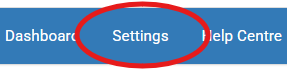
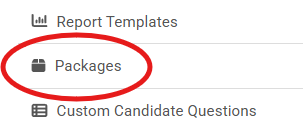
Once Packages are enabled, the Parent Account Holder (overall admin) can manage them. Log into Referoo directly, click through Settings into Packages in the left-hand menu, then click Create a Package.
Each Package can be set up with the following.
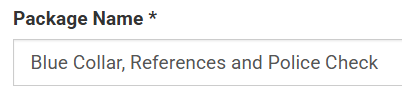
Step 1: Package Name
This is the name your users will see when adding a candidate. It could simply be the Job Title if you have a standard Package per title, and/or a summary of the Package contents so users can easily tell which one to choose, for example "Data Analyst", "Sales Manager, cobranded, Police Check" or "White Collar with ID and Background Checks".
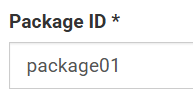
Step 2: Package ID
This is the backend ID that identifies the Package to other systems, and it's used to access the Package through an integrated platform. The Package ID can be a mix of letters and/or numbers with no special characters (such as commas or spaces). Keep it simple, for example package01, then package02, package03 and so on.
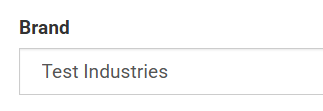
Step 3: Brand (if the Multiple Brands feature is enabled)
The Brand that candidates will be created under. This can be left blank if the Package will be used across multiple Teams, in which case the default Brand set on the Team applies instead.
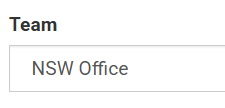
Step 4: Team (if the Teams feature is enabled)
The Referoo Team that candidates will be created under. Leave this blank if the Package will be used across multiple Teams.
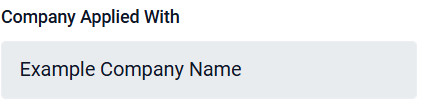
Step 5: Hide Company Applying For Field
By default, candidates can see and edit the Company Applying For field. If this option is turned on, the field is hidden from candidates and hidden in completed Reference Reports.
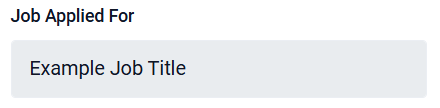
Step 6: Hide Job Applying For Field
By default, candidates can see and edit the Job Applying For field. If this option is turned on, the field is hidden from candidates and hidden in completed Reference Reports.
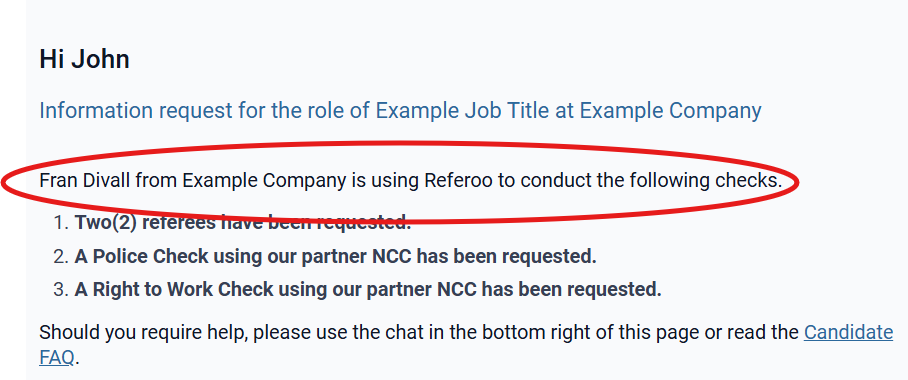
Step 7: Custom Candidate Introduction
This text is shown to candidates at the top of the first page of their Candidate Dashboard.

Here's what your candidates will see:
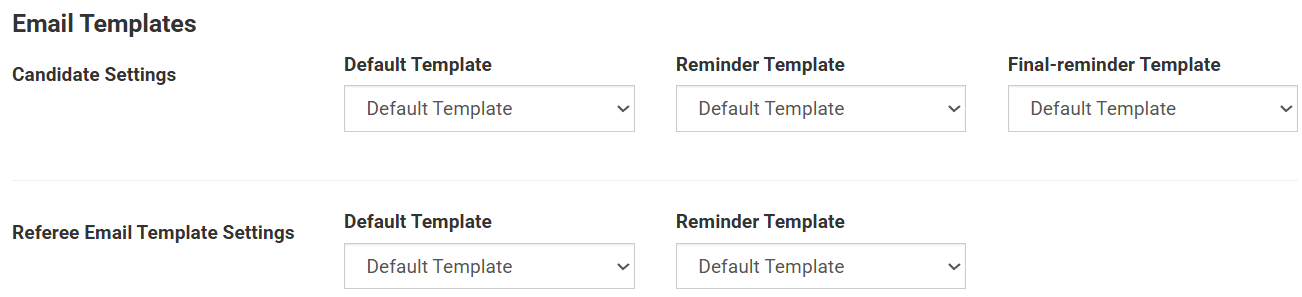
Step 8: Email Templates
Choose the initial invite and reminder email templates sent to candidates and referees. To create these templates and set a Default Template of each type for your account, see the Feature: Custom Email Templates guide.
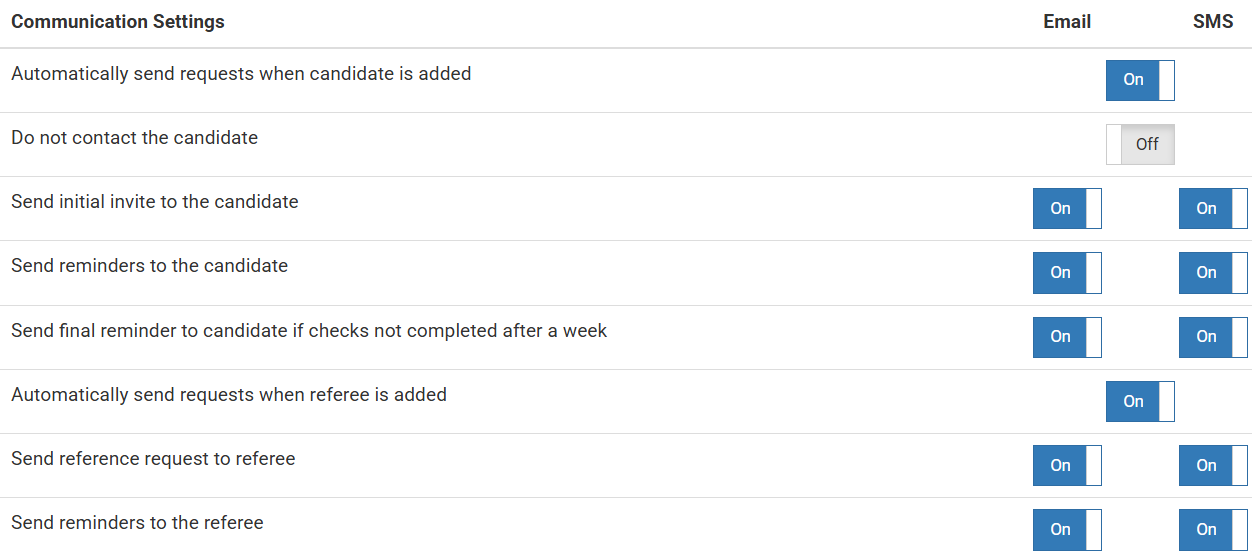
Step 9: Communication Settings
These control the automated emails and/or SMS sent to candidates and referees. We recommend turning everything on except 'Do not contact the candidate'. See the Setting up your Auto-Communications guide for details on what each toggle does.
Step 10: Add Checks
Select from the list of Checks available on your account. Each Check you have access to is listed under the name of its Check Provider.

Please note: Each Police Check in a Package is set up with a position/job title and a job location. If Package Overrides is turned on for your account, you can make the position title and job location changeable (see Step 12), so one Package can cover many roles. Otherwise, you'll need a separate Package for each position/job title and location.
Volunteer Police Checks work differently: the volunteer role is always fixed, so you'll need a separate Package for each volunteer role (see Step 11).
Step 11: Check-Specific Fields
Depending on the Check(s) you selected in Step 10, you'll need to select or enter certain information based on those Check requirements, such as the questionnaire and number of references for a Reference Check, or the position title and job location for a Police Check. These can vary greatly from Check to Check. The values you enter here are the Package's defaults.
For a Right to Work Check (UK), this includes the candidate's Job Type: Employee, Temporary / Agency Worker, Contractor / Gig Worker, Matched Through a Platform or Marketplace, or Self-Employed / Runs Their Own Business. Choose the option that matches how the people hired through this Package are engaged. If your roles cover different types of engagement, you'll need a separate Package for each Job Type.
Important: Since the UK Right to Work changes on 1 October 2026, every Package that includes a Right to Work Check needs a Job Type. If a Package doesn't have one, candidates created or imported with it won't be created, and you'll see the message "You must enter a value in the 'Job Type' field." To fix this, press Update next to the Package, choose a Job Type and save. For more on the changes, see UK Right to Work Changes — 1 October 2026.
For a Volunteer Police Check, tick Volunteer Police Check (VNCCHC) and choose the role from the Approved Volunteer Role dropdown, which lists only the volunteer roles approved for your account. The volunteer role replaces the position title and job location, and each Package can hold one volunteer role. To have Volunteer Police Checks and your volunteer roles set up, contact your Account Manager. Our Australian Police Checks (ACIC/NCCHC) guide explains the approval process. 
Only set up a Volunteer Police Check Package for roles that meet the ACIC's volunteer criteria: the role is genuinely voluntary and for the common good, and the person won't be an employee or contractor or receive any pay or entitlements beyond out-of-pocket expenses. Being unpaid on its own isn't enough. For example, unpaid internships and placements generally don't qualify unless they're a compulsory part of a formal Australian training course. See our Australian Police Checks FAQ (ACIC/NCCHC) for examples of roles that qualify and the purposes the ACIC excludes.
⚠️ Important: Choosing the volunteer check type for a purpose that isn't eligible breaches ACIC rules and may make the check invalid. If you're unsure, set the Package up with a standard police check instead.
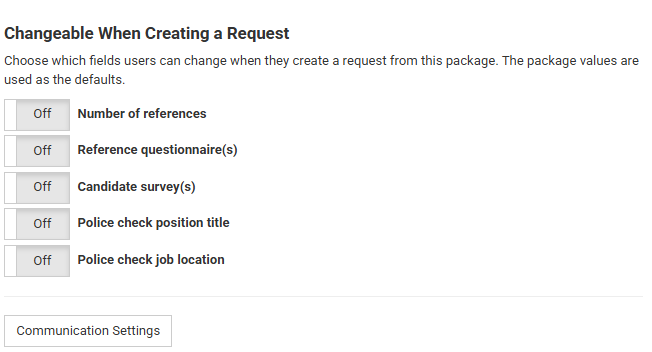
Step 12: Changeable When Creating a Request (if Package Overrides is turned on)
This section lets you choose which Package settings your users can change when they create a request. There's a toggle for each of the five settings that can be made changeable: Number of references, Reference questionnaire(s), Candidate survey(s), Police check position title and Police check job location.
All toggles are Off by default, which means the setting is fixed and every request uses the Package value. Turn a toggle On to let your users change that setting for an individual request. The value you set in Step 11 is still used as the starting value.
When you're done, press Create Package (or Update Package if you're editing an existing one). The Package will then be available for your users to select when creating candidates.
Integrated clients: If you're using Packages through an integration, please refer to the integration's Setup Guide in this Help Centre for the steps to make new Packages available to your users through that integration.
Please note: Some integrations may require the Package number instead of the Package ID. The image below highlights the difference. If you're unsure which one to use, reach out to the Referoo Support Team for assistance.

How Package Overrides work
When a setting is marked as changeable, the Package value is filled in automatically when your user selects the Package, and they can either keep it or change it for that one request. Settings that aren't marked as changeable stay fixed, and the request uses the Package value as usual.
Any change your user makes applies only to that request. The Package itself isn't changed, so the next request created from it starts from the Package values again. The candidate's page shows the values that were actually used for that request.
Good to know: Turning on Package Overrides doesn't change how your existing Packages behave. Every setting stays fixed until you turn its toggle On.
Important: If Package Overrides is later turned off for your account, the Changeable When Creating a Request section and the Package Options on the Add Candidate form are hidden, and all requests use the Package values. Your toggle choices are kept, so if the feature is turned back on, your Packages pick up where they left off.
Managing your Packages
Viewing your Packages
Your Packages are sorted alphabetically. To view them in ascending or descending order, select Package #.

Searching Packages
To find a Package, enter the Package name or Package ID in the search field. This is especially handy if you have a large number of Packages.
Creating a new Package
If you add a new questionnaire, Check, Survey or any other option that needs its own Package, simply repeat the steps in Stage 2. Before you do, it's worth checking whether an existing Package could cover it with Package Overrides instead, for example if only the number of references or the questionnaire is different.
Updating an existing Package
To update an existing Package, such as its name, questionnaire, Checks, email templates or changeable settings, return to Packages through your Settings and press Update next to the relevant Package. Make your changes, then press Update Package.
The new Package contents won't update existing candidates and their referees, but will apply to all new candidates and their referees from then on.
Duplicating Packages
To duplicate a Package, select the Duplicate option in the Actions section. The copy is named 'Copy of' [Package name] and appears at the top of your Packages list, ready for you to update its details such as the name, questionnaire, Checks or email templates.
Integrated clients: We do not recommend changing the Package ID. It isn't shown or used anywhere except for linking the Package to your integration. If you have changed a Package Name or Package ID, please refer to the integration's Setup Guide in this Help Centre for the steps to make the updated Package(s) available through that integration.
What your users will see
When your users add a candidate, they go to Candidates, click the Add Candidate tab and choose a Package from the Package dropdown. All of the Package's settings are then applied to the request. The full process is covered in our Your First Check guide.
Package Options
If the selected Package has any changeable settings, a Package Options section appears below the Package dropdown. It shows only the changeable settings, such as Number of references, Reference questionnaire(s), Candidate survey(s), Police check position title and Police check job location. Each filled in with the Package value. Your user can keep these values or change them before pressing Create. If none of the Package's settings are changeable, the Package Options section doesn't appear.
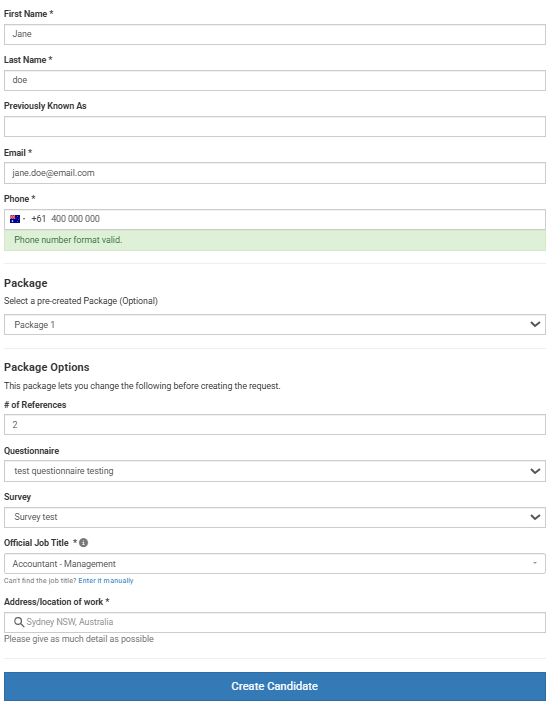
The same rules apply to these fields as when they're set on the Package. For example, # of References can't be left empty and must be 1 or more. If something else on the form needs fixing, such as a missing email address, any values your user has already changed in Package Options are kept, so they don't need to enter them again.
Good to know: The Official Job Title in Package Options is the police check position title. It's separate from the standard Job Applying For field near the top of the form, which Package Overrides doesn't affect.
Frequently Asked Questions
Will changing a value when creating a request change my Package?
No. Changes made in Package Options apply only to that request. The Package keeps its original values for every other request.
Will my existing Packages behave any differently?
No. Every setting is fixed by default, so nothing changes until you turn on a toggle in Changeable When Creating a Request.
Which settings can be made changeable?
Five settings can be made changeable: Number of references, Reference questionnaire(s), Candidate survey(s), Police check position title and Police check job location. All other Package settings, such as the Brand, Team, email templates and Checks, stay fixed.
Why can't I see the Changeable When Creating a Request section?
Package Overrides needs to be turned on for your account by the Referoo Support Team, and it's only available with the standard Package editor, not the Package Builder. Contact us if you'd like it turned on.
What happens if Package Overrides is turned off?
The changeable settings and Package Options are hidden, and all requests use the Package values. Your toggle choices are saved, so they come back if the feature is turned on again.
Do I still need a separate Package for each police check position and location?
Not if Package Overrides is turned on. Make the Police check position title and job location changeable, and your users can set them for each request from a single Package. The exception is Volunteer Police Checks. The volunteer role is locked in the Package and can't be made changeable, so you'll still need one Package for each volunteer role.
Can I use a Volunteer Police Check Package for unpaid roles, like internships?
Only if the role meets the ACIC's volunteer criteria. Unpaid isn't the same as volunteer. Internships, work experience and placements generally need a standard police check, unless the placement is a compulsory part of a formal Australian training course. Each volunteer role is reviewed and approved before it's added to your account, so speak to your Account Manager if you're unsure.
Need Help?
If you need assistance, please contact Referoo support via the chatbox on any Referoo
page or email support@referoo.com.